Getting Started with Docker for Development Environments
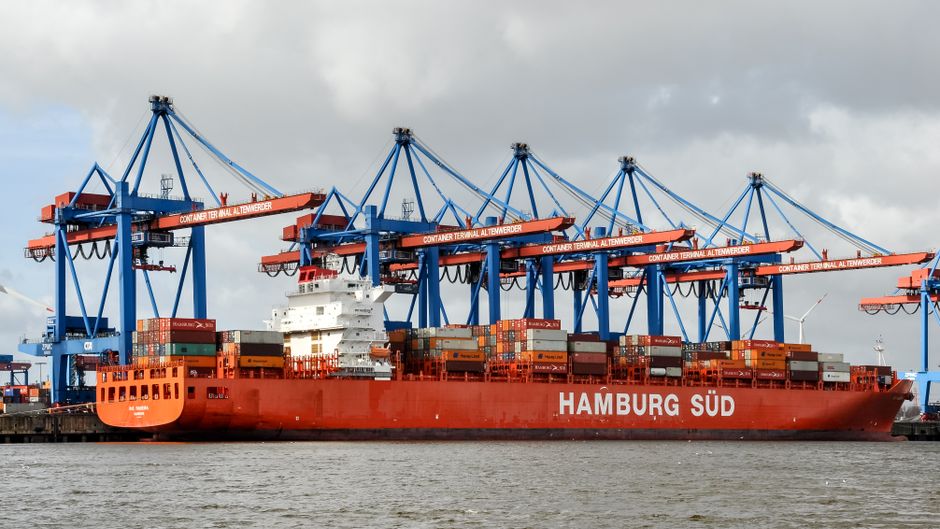
When a team of developers works on the same project, differences in operating systems, system libraries, or installed tools can lead to subtle bugs that are hard to reproduce. Docker offers a way to package an application with its dependencies into a lightweight, portable unit called a container. This approach helps create a development environment that behaves the same way on every machine, from a local laptop to a CI server.
By using Docker, developers no longer need to install and configure each dependency manually. Instead, they define the environment in a file that can be shared, versioned, and updated. This practice reduces the time spent on setup and troubleshooting, allowing more focus on writing code. The following sections explain the core concepts and practical steps needed to start using Docker for consistent development environments.
For teams exploring such tools, CodeStack Studio has observed that adopting container-based workflows often simplifies onboarding and reduces environment-related issues. The goal is not to replace existing tools but to complement them with a reliable foundation.
Understanding Docker Images and Containers
Docker uses images as blueprints for creating containers. An image contains the application code, runtime, system tools, libraries, and settings needed to run the software. Images are built from instructions in a Dockerfile, which specifies a base operating system and the steps to install dependencies. Once built, an image remains immutable, meaning any change requires building a new version.
A container is a running instance of an image. Multiple containers can be started from the same image, each isolated from the host system and from each other. This isolation allows developers to run different versions of the same dependency side by side without conflicts. Containers can also be started, stopped, and removed easily, making them ideal for temporary environments during development.
Images are often stored in a registry, such as Docker Hub or a private registry, so they can be pulled by any team member. When a developer pulls the same image tag, they receive the exact same files and configuration. This reproducibility is the foundation of consistent development environments.
Writing a Dockerfile for Your Application
A Dockerfile is a text document with instructions on how to assemble an image. It typically starts with a base image, for example, an official Python or Node.js image, and then adds the application code, installs dependencies, and defines how the container should start. The order of instructions matters because each step creates a new layer, and Docker caches layers to speed up subsequent builds.
To write an effective Dockerfile, developers list only the necessary dependencies and avoid installing packages that are not required for the application to run. For instance, a Python application might use a base image with Python 3.11, copy the requirements.txt file, run pip install, and then copy the application code. The last instruction uses the CMD or ENTRYPOINT command to specify the process that runs when the container starts.
During development, it is common to modify the code frequently. To avoid rebuilding the image on every change, developers often use bind mounts to share the source code directory between the host and the container. This technique allows the container to access the latest code without rebuilding, while still running inside the isolated environment. The Dockerfile itself remains the source of truth for the environment setup.
Using Docker Compose for Multi-Container Environments
Many applications depend on services like databases, message queues, or caching systems. Running each service in a separate container and connecting them manually can become complex. Docker Compose is a tool that defines and runs multi-container applications using a YAML configuration file. With a single command, all services can be started together with the proper network connections.
In a docker-compose.yml file, each service is defined as a key, with its image or build context, environment variables, ports, and volumes. The file also specifies dependencies between services, so, for example, the web application container only starts after the database container is ready. This orchestration makes it straightforward to set up a full stack environment locally.
Developers can also define multiple profiles or override files to adapt the environment for different scenarios, such as testing or debugging. CodeStack Studio’s internal projects often rely on Compose files to let each developer spin up the exact same set of services, reducing the variability that can cause integration issues.
Integrating Docker with Your Local Development Workflow
Integrating Docker into an existing workflow requires some adjustments. One common approach is to run the development server inside a container while keeping the code on the host machine. Using volume mounts, changes to the code are reflected inside the container in real time, provided the application supports hot reloading. Tools like nodemon, webpack-dev-server, or Django’s autoreload work seamlessly in this setup.
Another consideration is debugging. Many debuggers can attach to processes running inside a container by exposing the necessary ports. Some IDEs also support remote debugging through Docker directly. Developers can set breakpoints, inspect variables, and step through code as if running natively.
Environment variables are often used to configure the application for different contexts. In a Docker workflow, these variables can be defined in a .env file and referenced in the Compose file or passed directly to the container. This practice keeps configuration outside the image and allows teams to share a common base image while customizing settings per developer.
Tips for Maintaining Consistency Across Teams
Consistency does not end with defining containers. Teams should version their Dockerfiles and Compose files alongside the source code, so every branch carries its own environment definition. When a team member adds a new dependency, they update the Dockerfile, and everyone else gets the change when they pull the latest code. This process makes environment updates transparent and reviewable.
It is also helpful to automate image building on a central CI system. A team can build and push a development image to a registry after each merge. Other members then pull that image instead of building locally, saving time and ensuring the image matches what was tested. For projects that require frequent changes to dependencies, this approach reduces the chance of “works on my machine” scenarios.
Finally, documentation should explain how to start the environment and any specific commands related to Docker. A simple README with a list of prerequisites and run instructions, such as “docker-compose up,” lowers the barrier for new contributors. Over time, these practices build a shared understanding of the environment and reduce friction in the development process.